Required macOS settings
Under normal circumstances, there is no need to read this page, as the necessary settings have already been made during the initial setup.
However, we explain the macOS settings made during the initial setup of Karabiner-Elements for the following purposes:
- If you want to check the macOS settings made during the initial setup.
- If Karabiner-Elements is not working properly and you want to ensure that the macOS settings are correct.
Enable background services
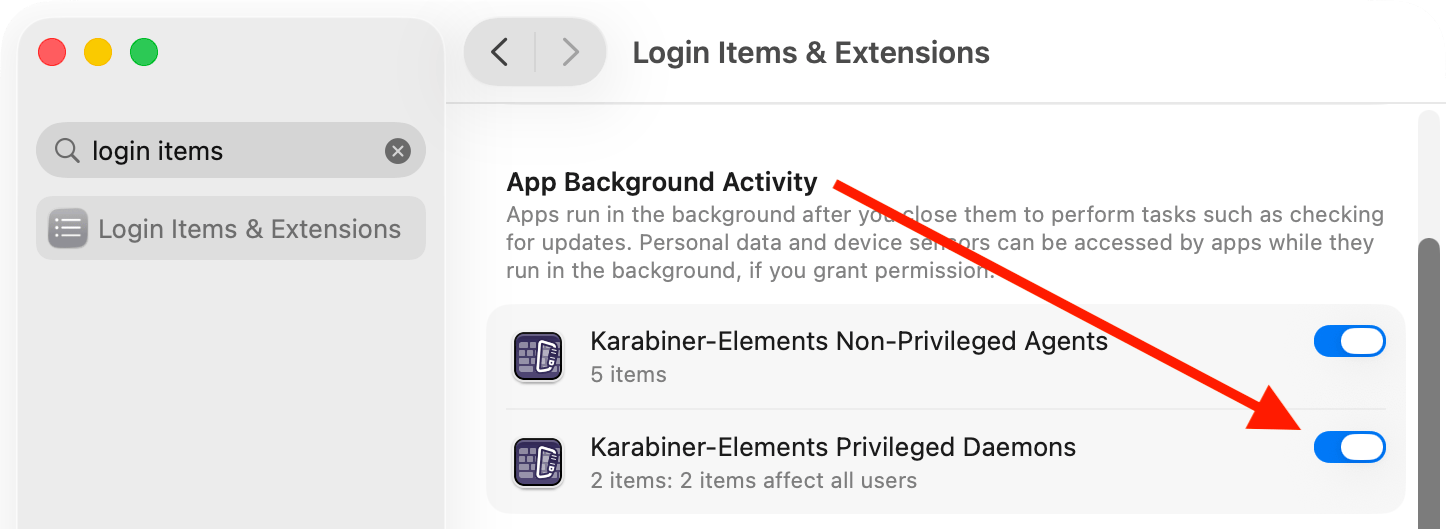
Karabier-Elements has processes running constantly in the background, that handle input events.
You have to keep the background items enabled in macOS System Settings > General > Login Items.
Enable Accessibility
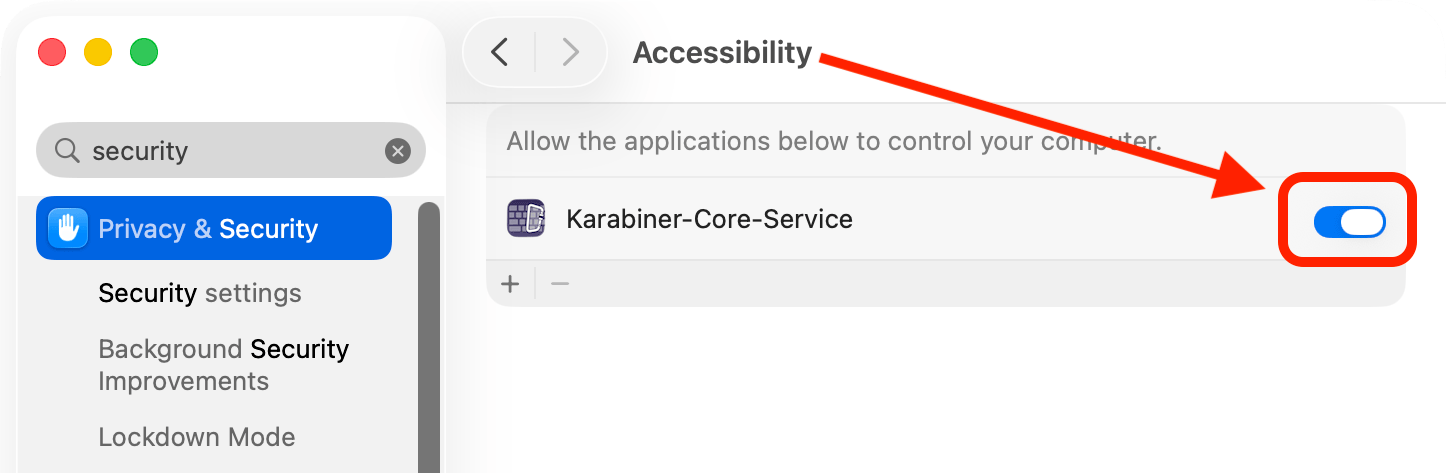
Karabiner-Elements requires Accessibility permission for the following purpose:
- To accurately and efficiently detect the currently active application and the focused UI element, so that input event modification rules can be switched based on the focused app.
- To capture keyboard events via CGEventTap when “Enable CGEventTap fallback” is enabled.
- As a secondary effect, granting Accessibility permission also provides the permission needed to capture input events from physical devices.
You can enable it in macOS System Settings > Privacy & Security > Accessibility.
Allow system extension
You can approve the system extension in macOS System Settings > Login Items & Extensions > Driver Extensions.
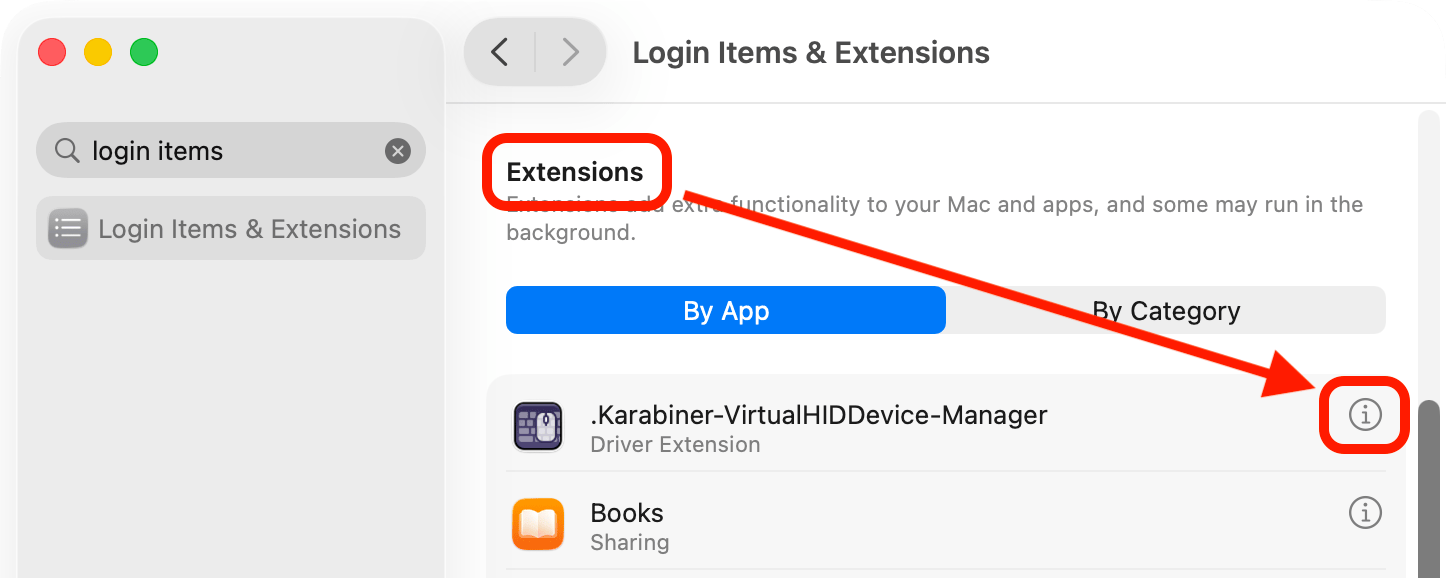
Karabiner-Elements uses the system extension to provide a virtual keyboard and mouse. You have to approve system extension before using it.
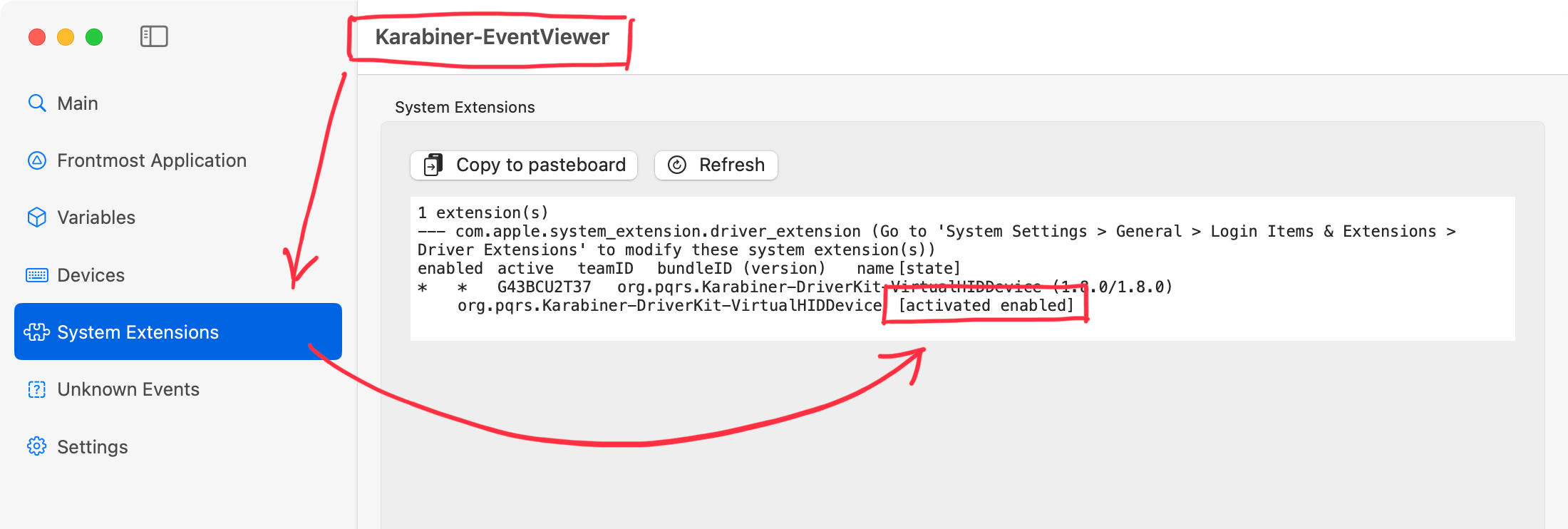
You can confirm whether the system extension already allowed in System Extensions.
If org.pqrs.Karabiner-DriverKit-VirtualHIDDevice exists and the status is [activated enabled], the system extension is already allowed.
Otherwise, you have to approve the system extension in macOS System Settings.
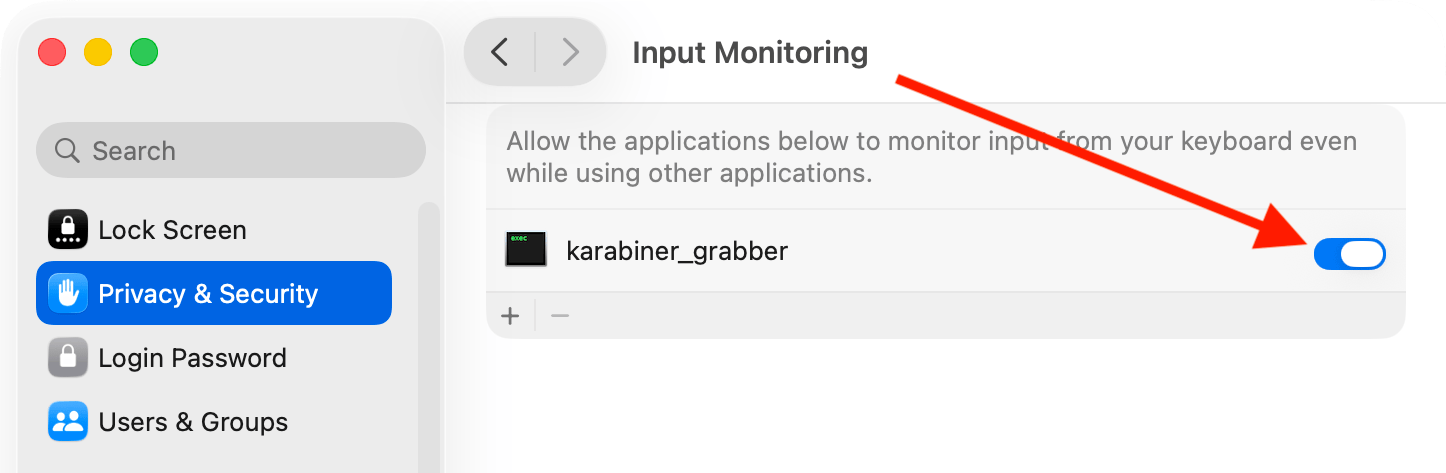
Enable Input Monitoring (when using Karabiner-Elements 15.9.0 or earlier)
This setting is usually unnecessary in Karabiner-Elements 16.0.0 and later, because it is covered by the Accessibility setting.
Karabiner-Elements requires Input Monitoring permission to receive and modify input events.
You can enable it in macOS System Settings > Privacy & Security > Input Monitoring.