Guide for supporting unsupported keys
Karabiner-Elements supports most keys, including those found only on PC keyboards. However, it may not support certain special function keys, such as some keys in the Consumer Page’s Generic GUI Application Controls. Karabiner-Elements maintains a whitelist of verified keys, and unverified events that are not included in this list are ignored.
This guide explains how to add support for unsupported keys in Karabiner-Elements.
Investigate the key code
Use Karabiner-EventViewer to inspect key codes. First, enable “Temporarily turns off all Karabiner-Elements modifications” in Karabiner-EventViewer so that raw hardware input events are shown.
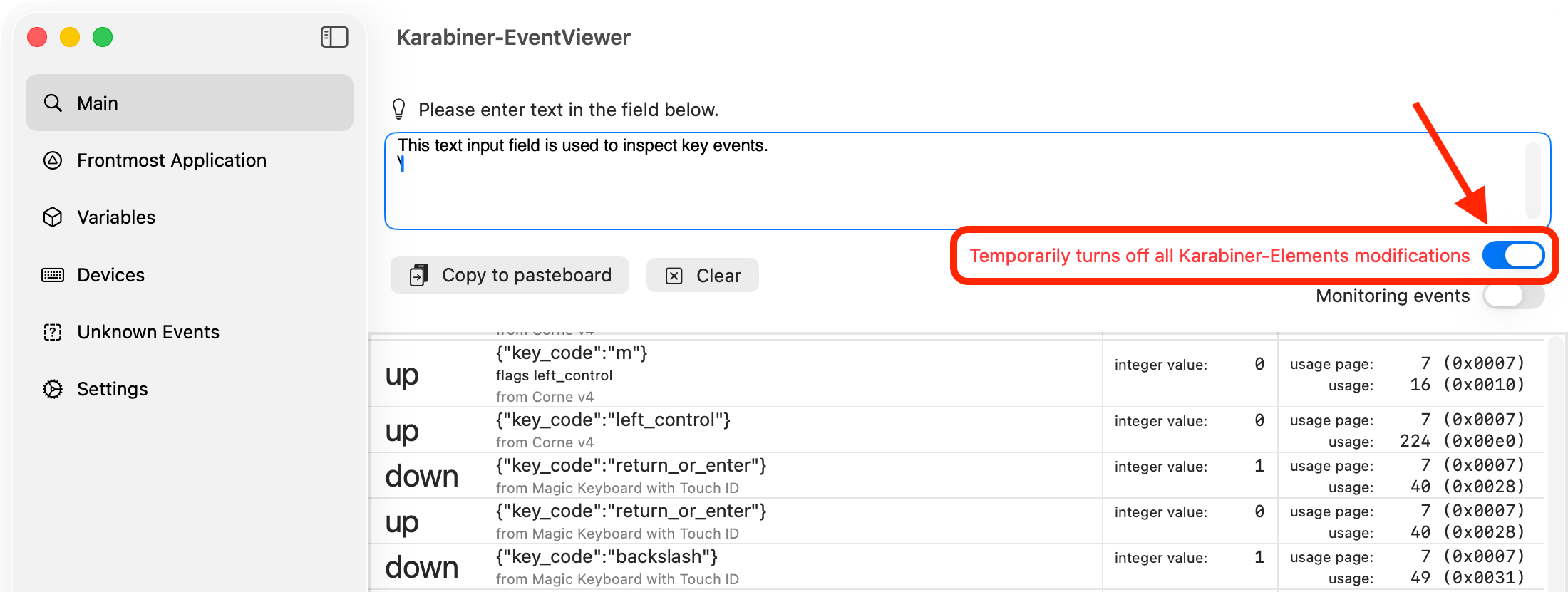
Then type the target key in the text area on the Main tab and check how it is handled.
- If the event appears in the Main tab, the key is already supported, so no further action is needed.
- If the event appears in the Unknown Events tab, you can enable it by updating the whitelist and rebuilding Karabiner-Elements.
- If the event does not appear in either tab, macOS itself cannot recognize the key, so Karabiner-Elements cannot support it.
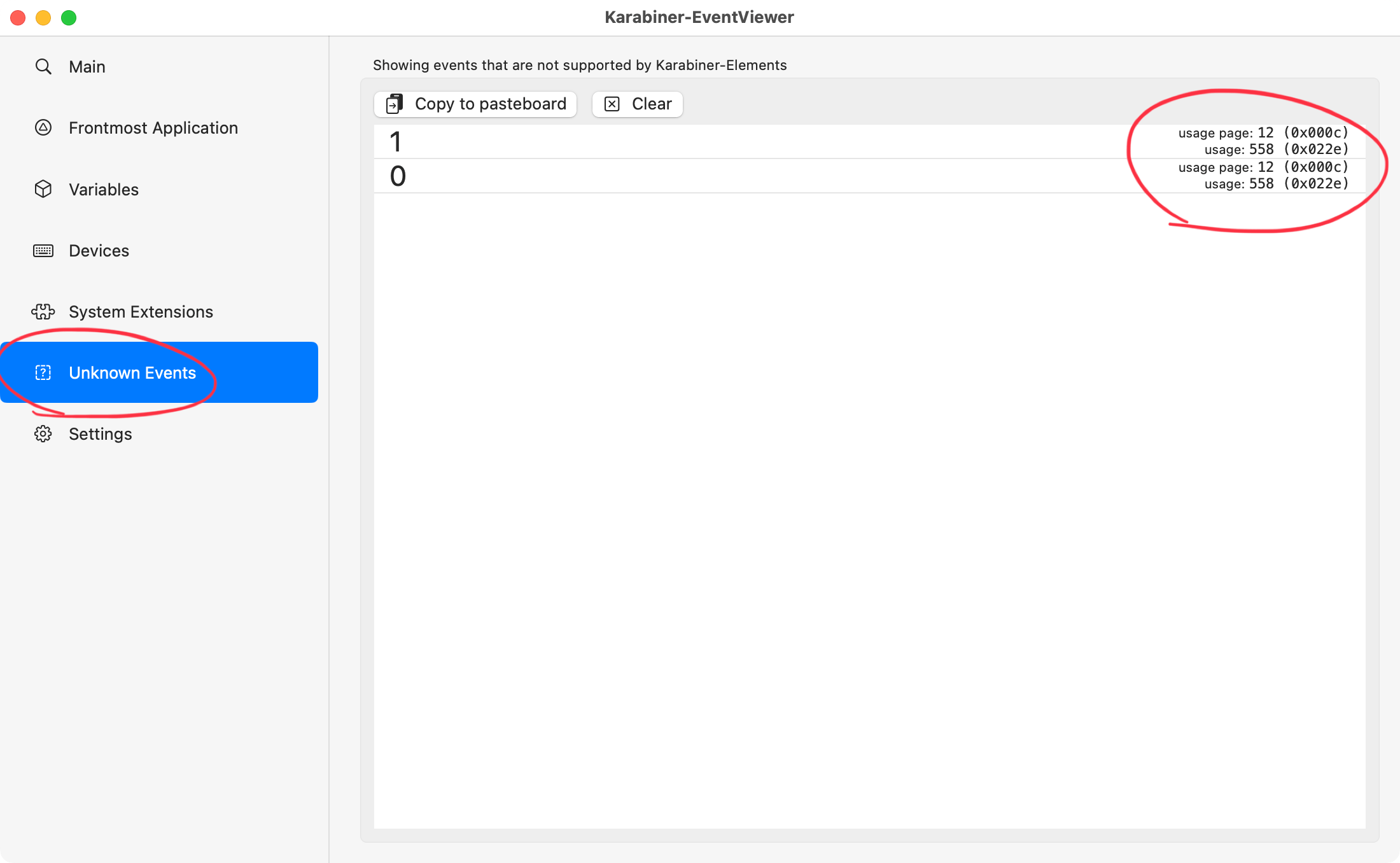
Add the keys to the whitelist
Keys are added to the whitelist by modifying the source code. The following diff adds support for the Consumer Page’s AC Zoom Out and AC Zoom In usages. You can add other key codes in the same way.
https://github.com/pqrs-org/Karabiner-Elements/pull/4021/files
The key names follow this list:
https://github.com/apple-oss-distributions/IOHIDFamily/blob/main/IOHIDFamily/IOHIDUsageTables.h
Build a package
Next, follow the steps below to set up the build environment and build a package.
https://github.com/pqrs-org/Karabiner-Elements/blob/main/README.md#for-developers
After building the package, install it to use the newly added keys.
Create a pull request to add new keys
Once you have successfully added the new keys, we would appreciate it if you submitted a pull request to Karabiner-Elements.